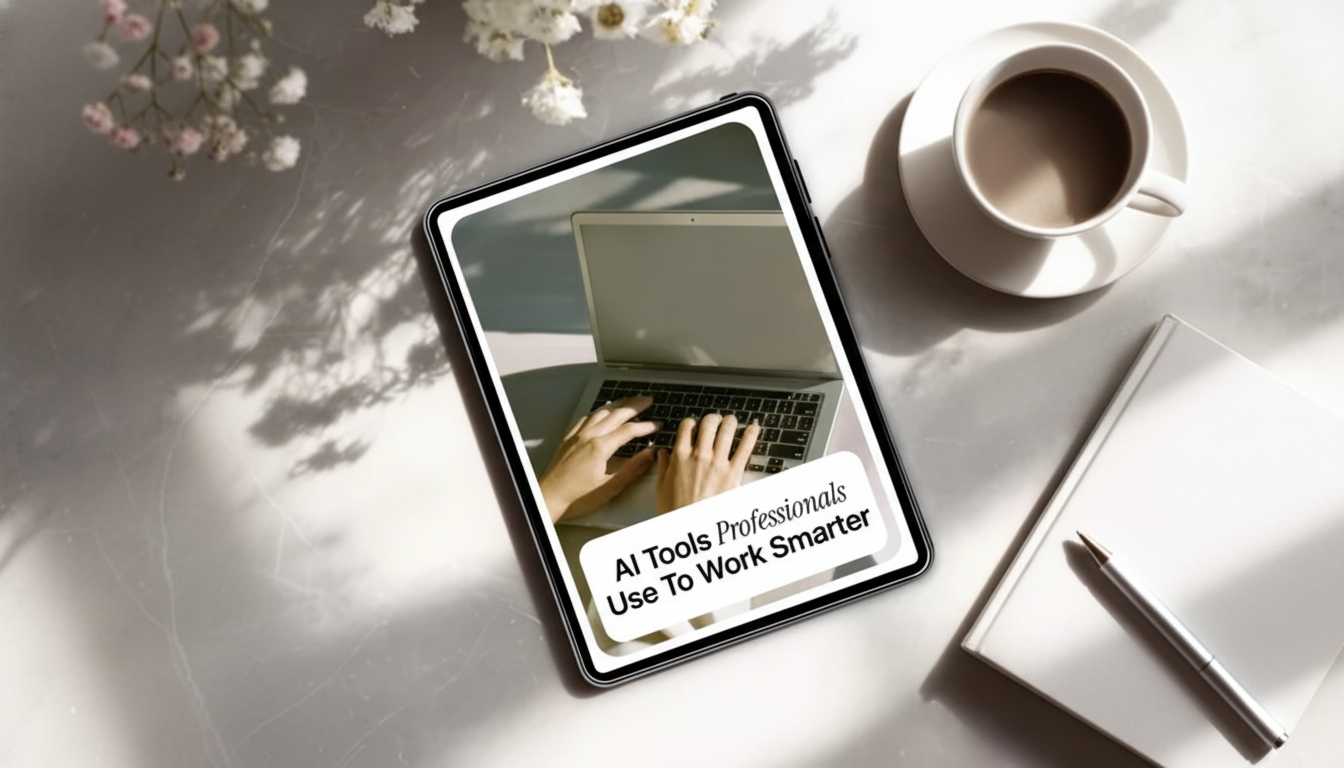
Modern professionals use AI to cut repetitive work, tighten communication, and reach clearer decisions faster—without turning the day into an endless cycle of testing new apps. The most effective approach is simple: pick a small stack of tools that maps to everyday tasks like planning, writing, research, meetings, data handling, and lightweight automation. The goal isn’t “more AI.” It’s fewer bottlenecks, fewer handoff errors, and more time spent on work that actually moves projects forward.
The most consistent results come from a task-first mindset. Instead of asking, “What can this tool do?”, start with “Where do I lose time or quality during the week?” AI tends to shine in drafting, summarizing, classifying, routing, checking, and pattern-spotting.
Most daily workflows can be covered by a handful of tool categories. The winning stack is usually “boring” by design: reliable tools that fit existing work habits.
| Category | Best for | Typical output | Quick caution |
|---|---|---|---|
| AI assistant | Drafts, rewrites, summaries, ideation | Email draft, brief, outline, checklist | Verify facts; avoid pasting sensitive data |
| Research/search | Finding sources and comparing options | Linked summary, pros/cons, vendor comparison | Prefer tools that show sources; spot-check |
| Meeting intelligence | Notes and action items | Transcript, tasks, follow-up email | Confirm speaker accuracy; sanitize confidential content |
| Document/knowledge | SOPs, FAQs, internal playbooks | Step-by-step procedures, Q&A from docs | Keep version control; prevent outdated guidance |
| Data/spreadsheets | Cleaning, formulas, insights | Pivot/table, formula suggestions, narrative insights | Check calculations; avoid overconfidence |
| Automation | Routing and repetitive processes | App-to-app workflows, alerts, scheduled reports | Use approval steps for high-impact actions |
A dependable routine beats “random AI usage.” A simple loop—plan, execute, summarize—keeps quality high and reduces rework.
Start by turning scattered inputs (emails, chat pings, tasks) into a prioritized plan with time blocks. Ask AI to rank tasks by urgency and impact, then choose 1–3 “must-win” outcomes that define a good day.
Use AI to draft concise replies that propose next steps, confirm owners, and adjust tone. This is especially useful when switching between executive updates, client comms, and teammate collaboration.
When time-boxed, research tools can produce an annotated summary with assumptions, risks, and “what to do next.” Prefer tools that provide links and make it easy to validate sources.
Convert bullet notes into a first draft, then request a second pass focused on structure and scannability. The human checkpoint is where you align voice, confirm claims, and ensure the doc matches the real context.
Before a meeting, generate an agenda tied to goals and decisions needed. Afterward, turn notes into action items with owners and due dates, then draft a short recap that’s easy to forward.
Ask AI to summarize accomplishments, risks, and blockers, then draft tomorrow’s top priorities. This builds momentum and reduces the “what did we decide?” confusion that slows teams down.
For risk and governance orientation, see the NIST AI Risk Management Framework (AI RMF 1.0) and the OECD AI Principles. For workplace adoption patterns, the Microsoft Work Trend Index is a useful reference point.
A structured guide can reduce trial-and-error with ready-to-use routines, examples, and safety checks for daily productivity, automation, and decision-making. For a workflow-based approach with templates and guardrails, consider AI Tools Professionals Use to Work Smarter (Practical eBook Guide).
For setup that supports cleaner calls and more stable recording during meetings and demos, an ergonomic accessory like the Adjustable Tabletop Phone Stand for Livestreaming & Vlogging can also help keep your workspace consistent.
The most useful tools typically fall into five buckets: an AI assistant for drafting and summarizing, research/search for source-backed overviews, meeting tools for notes and action items, spreadsheet/data helpers for analysis, and automation connectors for routing repetitive tasks. Choose based on the tasks that cause the most delays, not what’s trending.
Use AI for first drafts and fast structure, then apply a consistent human checkpoint for facts, tone, and context. Templates and standard review steps (like verifying numbers and confirming owners on action items) keep speed from turning into mistakes.
Safety depends on company policy, the tool’s privacy controls, and the type of data involved. In general, avoid pasting confidential or regulated details into public tools, sanitize inputs when possible, and use enterprise features or approved systems when sensitive work is involved.





Leave a comment